

How to use versions, alignment and templates in the Edits app
Edits can now hold several versions of one project, snap text and stickers into line, lock clips inside a template and export up to 15 minutes. Here are the steps.
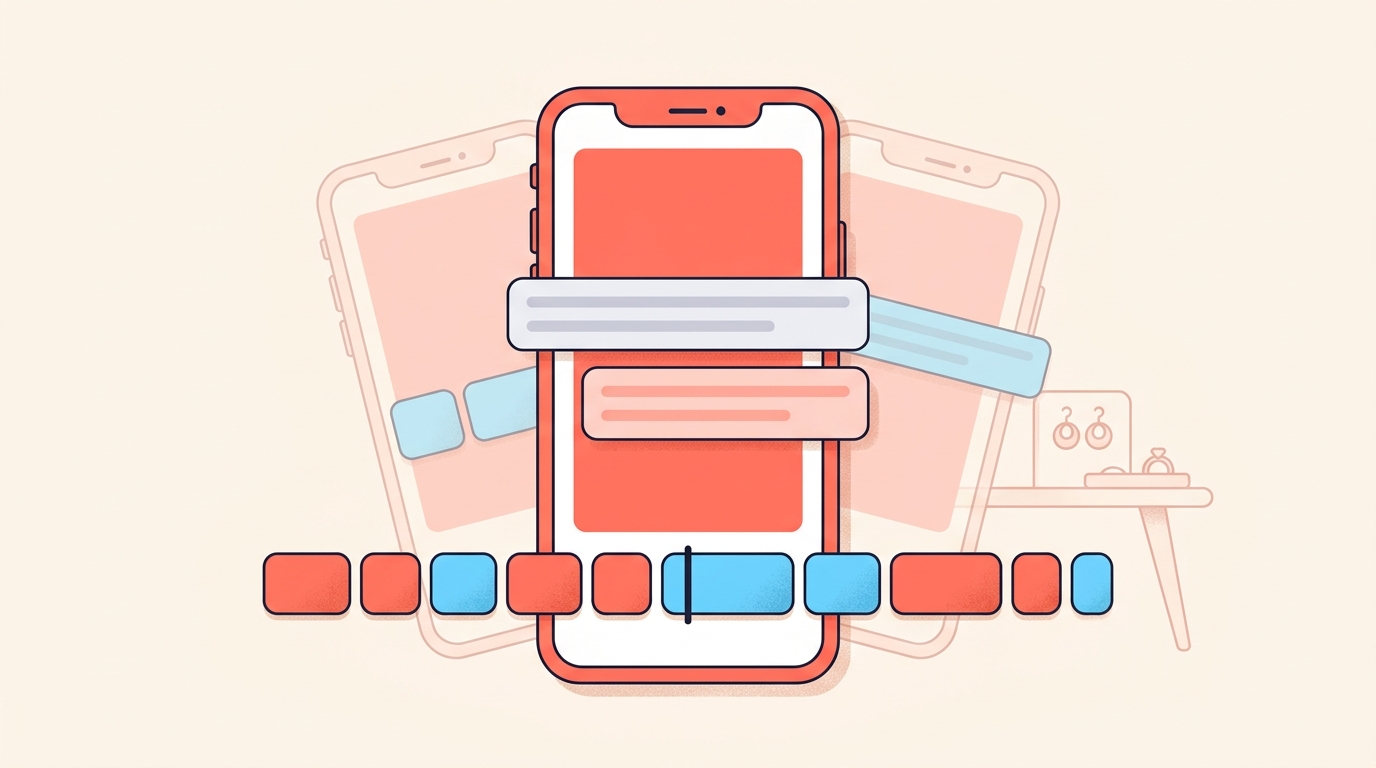
Edits can now hold several versions of the same project, snap text and stickers into line with each other, lock clips inside a template, and export videos up to 15 minutes long. To make a second version, open a project, tap the project name at the top of the editor and tap Manage versions.
None of these four is a new effect. They all take setup time off a normal edit, which is why we think they matter more than they sound. Below are the steps for each, and then the order we'd work in across a week of posting.
What changed in the Edits editing workflow?
Four things. Project versions let you try a different creative direction inside one project. Item-to-item alignment snaps elements to each other and to the centre of the frame. Templates now take overlays and locked clips. And exports run up to 15 minutes.
The editor itself works the way it always has. Tap Projects at the bottom to see your projects and tap one to open the editing view. Every piece of media, text, music or other layer you add appears as its own clip along the bottom of that view. Tap and hold a clip to move it elsewhere in the video, or tap and hold either end to change how long it stays on screen.
That strip is the timeline, and Edits gives you clip-level precision on it. Exports come out with no watermark, which is worth knowing when the same cut has to work as a reel and as a file you send someone on WhatsApp.
How do I make more than one version of a project?
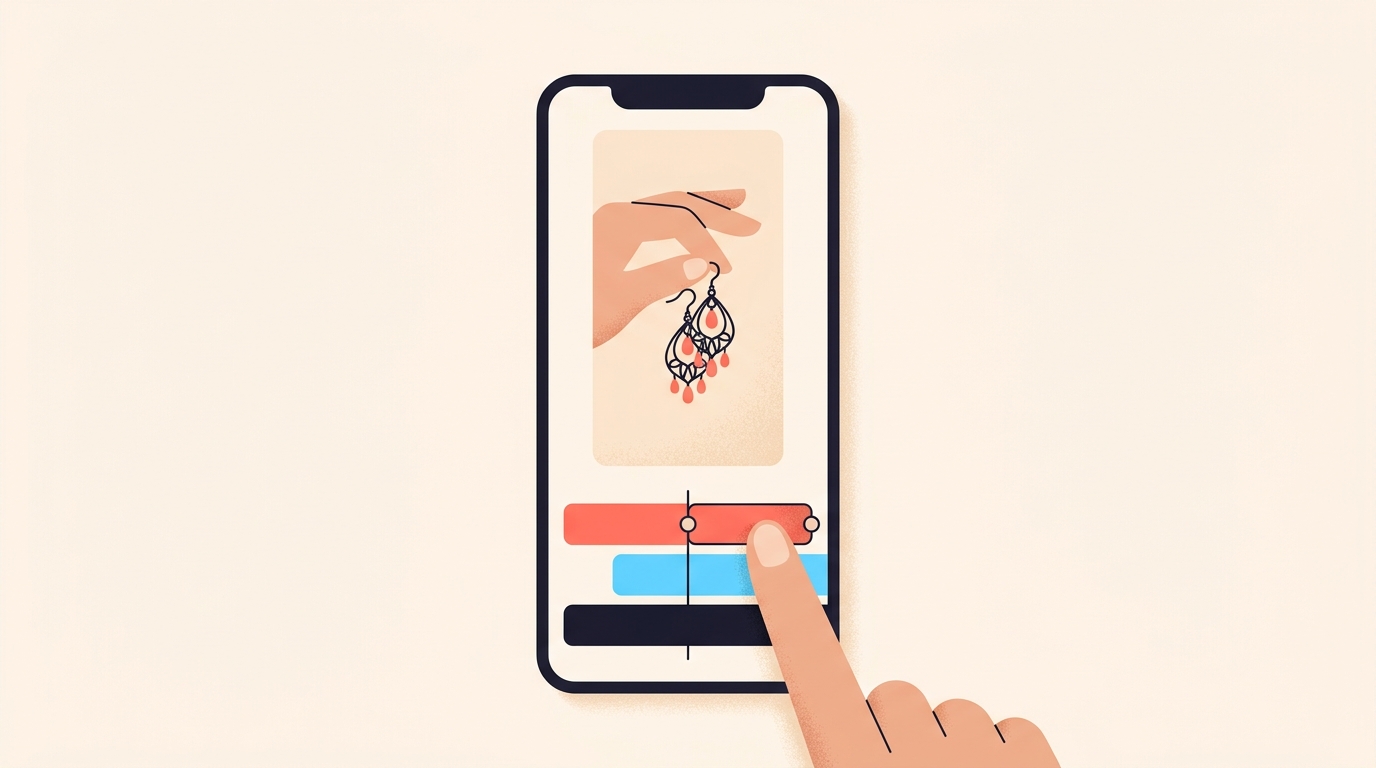
Project versions let you try a different creative direction without starting from scratch, and without filling your projects grid with near-duplicates. You can switch between versions whenever you like.
- Open the project in Edits.
- Tap the project name at the top of the editor.
- Tap Manage versions.
- Add a new version, rename the versions you have, or switch between them.
We'd use it on the opening, because that's the part worth changing. Say you sell silver jewellery. Version one opens on the earring in your hand, version two opens on the price written on a card, version three opens with a spoken 'kitne ka hai?'. The edit underneath stays the same for all three.
Then post them on different days and look at what happened, which we walk through in our guide to Edits insights. If you'd rather test an opening on people who don't follow you yet, trial reels are the place to do that.
How do I line up text and stickers exactly?
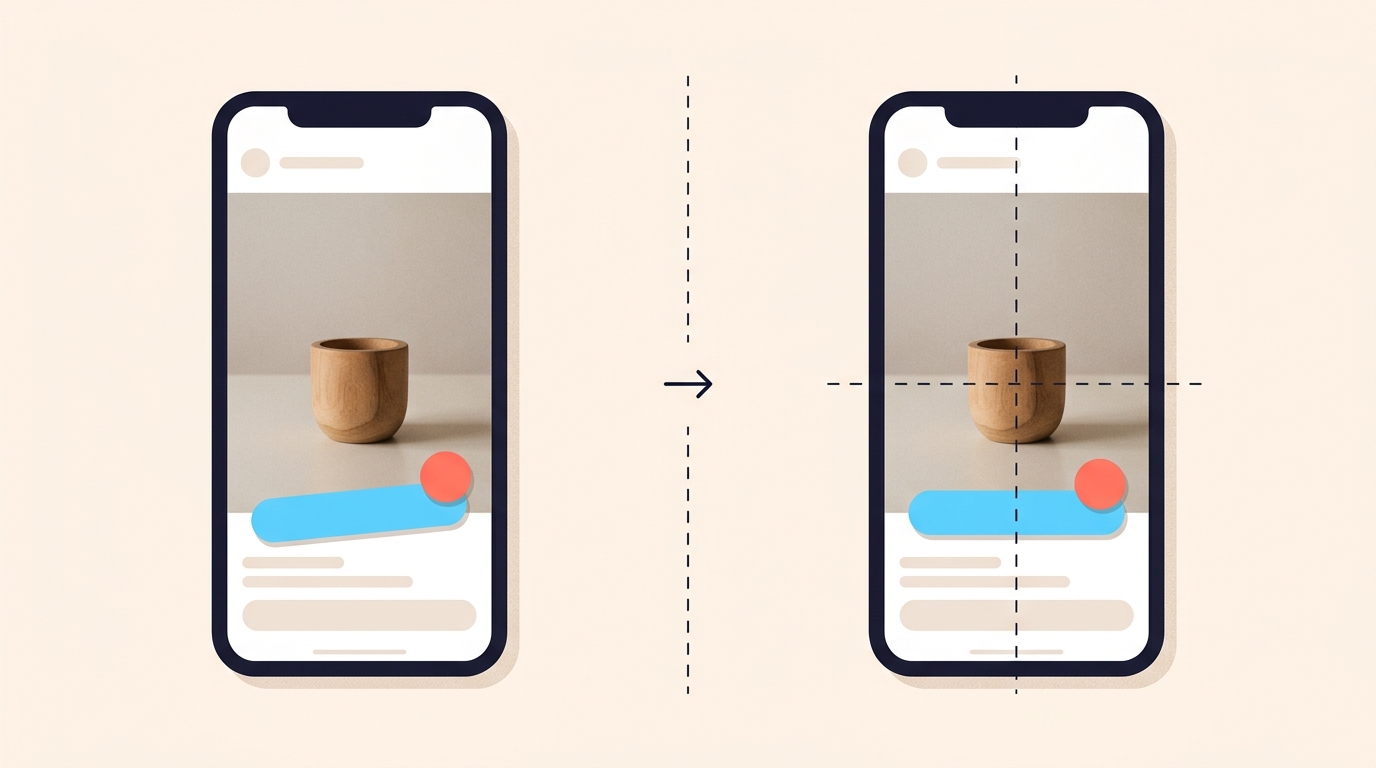
Drag any element on the preview canvas, and alignment guides appear on their own when it snaps to another element or to the centre of the frame. Text, stickers and overlays all behave this way, so you're no longer eyeballing whether a line is centred or whether two stickers line up.
This is quieter than a new filter, and it fixes the things that make a reel look thrown together: a price sticker sitting a few pixels off, a caption bar that drifts between clips, a cutout that jumps when you swap a shot.
We'd still keep text away from the very bottom of the frame. Snapping tells you where an element sits in your edit, not what will end up on top of it once the reel is playing, so we leave a margin there by habit.
How do I build a template others can reuse?
Templates now support overlays, and you can lock specific clips in place. A locked clip stays put and carries over for anyone who reuses your template, while everything unlocked is theirs to replace.
- Build the edit you want to turn into a template.
- Tap a clip and select Lock to keep it in place for anyone who reuses the template.
- Add overlays from the Overlay tab in the bottom toolbar.
An overlay can be a photo, a video, a reel or an Instagram profile link, so a template can carry an end card or a credit that doesn't move about.
For a small label, the intro and the end card are the two clips we'd lock. The middle stays open for whatever you're showing this week, and every reel in the series still looks like it came from the same shop. If those reels also need a Hindi or Gujarati line, bilingual captions has the steps.
How long a video can I export from Edits?
Up to 15 minutes, currently on iOS. That covers a longer vlog, a tutorial or a multi-part story, none of which fitted before.
- Tap Projects at the bottom and open your project.
- To set the quality, tap the resolution in the top right and choose the resolution, frame rate and colour.
- When the edit is done, tap Next in the top right.
- Tap Download to save it to your camera roll, or Share to Instagram to open Instagram and share it as a reel.
A reel shared this way carries an icon on Instagram showing it was created with Edits. You can also save it as a draft on Instagram instead, add the caption and tags there, and keep editing in Edits: the draft stays linked to the project, though you have to export again before any change shows up in it.
On which resolution and frame rate to pick, our post on camera and export settings has the numbers.
How would we fit this into a week of posting?
The four stack, so the order matters more than any one of them:
- Build one reel properly, with the intro and end card you want on every reel in the series.
- Lock those two clips and save it as a template.
- Next week, drop new shots into the template instead of opening a blank project.
- Inside that project, make two versions of the opening and post them on different days.
- Keep the opening that held people, and rebuild the template around it.
After a month of this, most of your editing is choosing shots and writing the first line, because the layout, the end card and the caption style are already decided. That is the whole point of the change.
Setup is not the work. The first line is the work.
How do I create multiple versions of a project in Edits?
Open the project, tap the project name at the top of the editor and tap Manage versions. From there you can add a new version, rename versions or switch between them.
How do I align text and stickers in Edits?
Drag any element on the preview canvas. Alignment guides appear automatically when it snaps to another element or to the centre of the frame.
Can I lock a clip in an Edits template?
Yes. When building a template, tap a clip and select Lock. A locked clip stays in place and carries over for anyone who reuses your template.
How long can an Edits export be?
Up to 15 minutes. Longer exports are currently available on iOS.
How do I get a finished video out of Edits?
Tap Projects at the bottom, open your project, tap Next in the top right, then tap Download to save it to your camera roll or Share to Instagram to share it as a reel.
A template series works because every reel ends the same way, and the ending is usually an ask. When it's an ask to comment a word, Instoly sends each person who comments a DM with what they asked for, so the reply doesn't depend on you being at your phone.
The takeaway
Lock the intro and end card into a template, then spend the time you save on the opening line.
Sources
Built for Instagram creators.
Instoly answers comments on your posts and reels with an automatic DM, through Instagram's official API. It also gives you a Store for the link in your bio, AI Studio for captions and try-on, and invoices built from your posts. The free plan includes 1,000 DM & comment credits a month.
Start free