

Best camera and export settings for Instagram Reels
Export reels at 2K, HDR and 60 fps and share straight from Edits to Instagram. Here's how we set up recording, export and upload, plus the phone habits that matter more than settings.
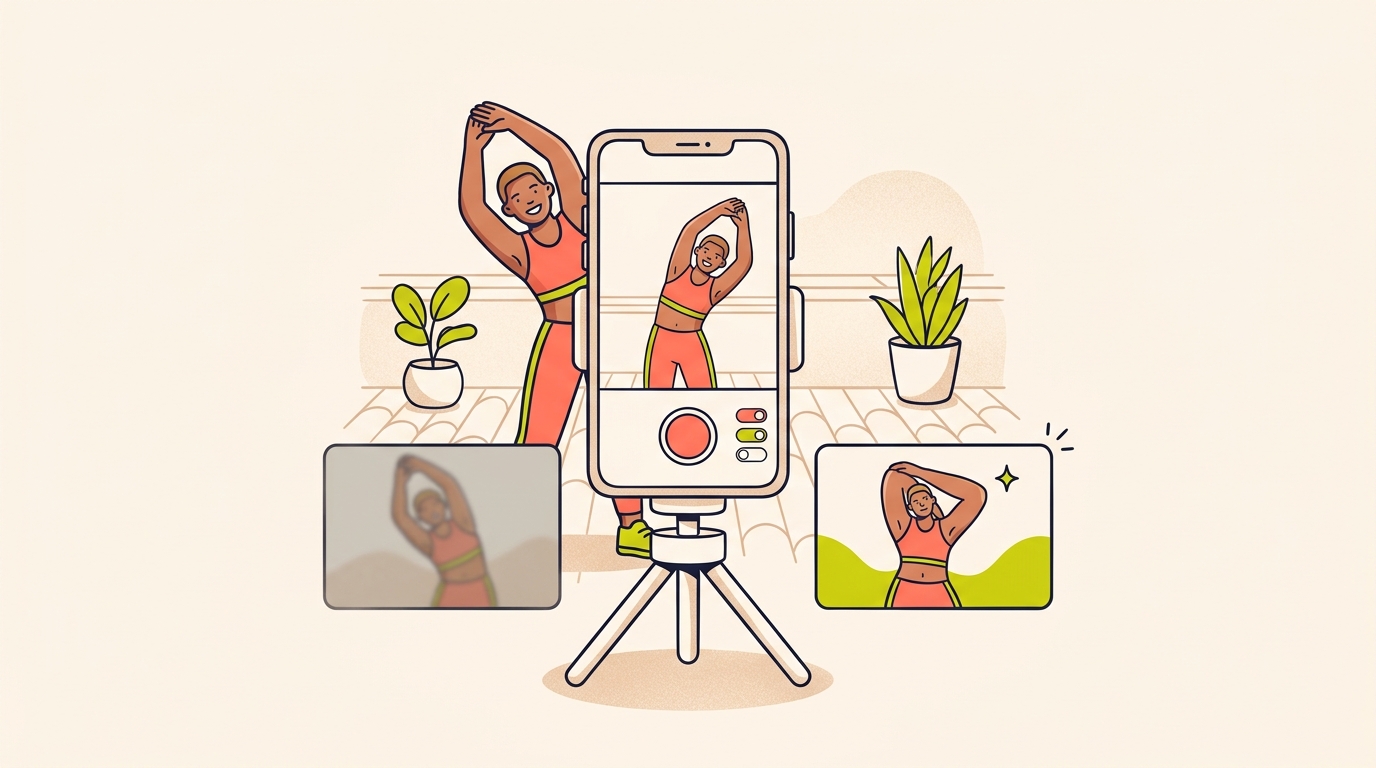
For the sharpest reels, export at 2K, HDR and 60 fps, and share straight from Edits to Instagram. When recording, Edits can shoot up to 4K at 60 frames per second, and in HDR if your phone supports it.
We make reels every week, and this is the setup we use from camera to upload. After the settings, we cover one Instagram toggle worth switching on and the phone habits that matter more than any number.
What are the best settings for Instagram Reels?
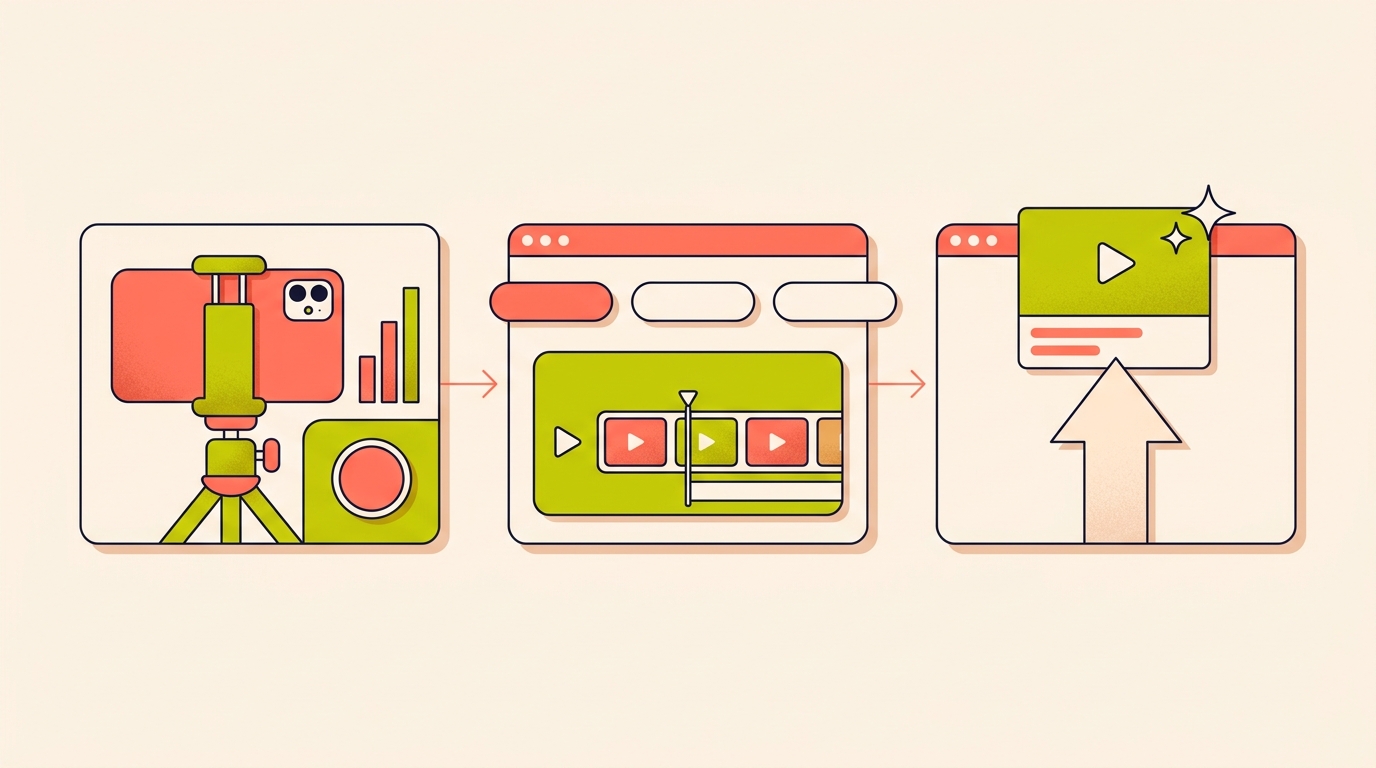
Edits is Instagram's own video creation app, built for making videos on your phone. It looks after quality at three stages, and each stage has a setting to get right.
- Recording: Edits records up to 4K at 60 frames per second. If your phone supports HDR, you can shoot in HDR too, for richer colour, smoother motion and more detail from the first frame.
- Editing: Edits keeps the full quality of your footage on the timeline, and lets you choose an export resolution up to 4K, a frame rate up to 60 fps, and SDR or HDR colour.
- Sharing: for the best quality on Instagram, export at 2K, HDR and 60 fps, and share directly from Edits.
Why export at 2K instead of 4K?
Instagram optimises playback for mobile viewing depending on the viewer's device and connection, and it prioritises playback up to 2K, HDR and 60 fps. That's the ceiling your export should aim for.
The way we see it, a 4K export gives you a bigger file without raising that ceiling. We export the Instagram version at 2K, and only make a 4K export when we need a master file, say for a brand that asks for one.
If your phone can't shoot HDR, don't worry about that part. We'd still aim for 2K and 60 fps wherever your phone allows.
Does it matter if I share directly from Edits?
Yes. Reels shared directly from Edits to Instagram get priority processing, so they look their best from the very first view. And quality isn't only about looks: higher video quality can help your reels reach more people.
So for any reel where quality matters, like a product close-up or a brand deliverable, we finish it in Edits and share from there, instead of saving the file and uploading it separately. Once it's live, you can compare it with your other reels in Edits.
How do I upload reels in the highest quality on Instagram?
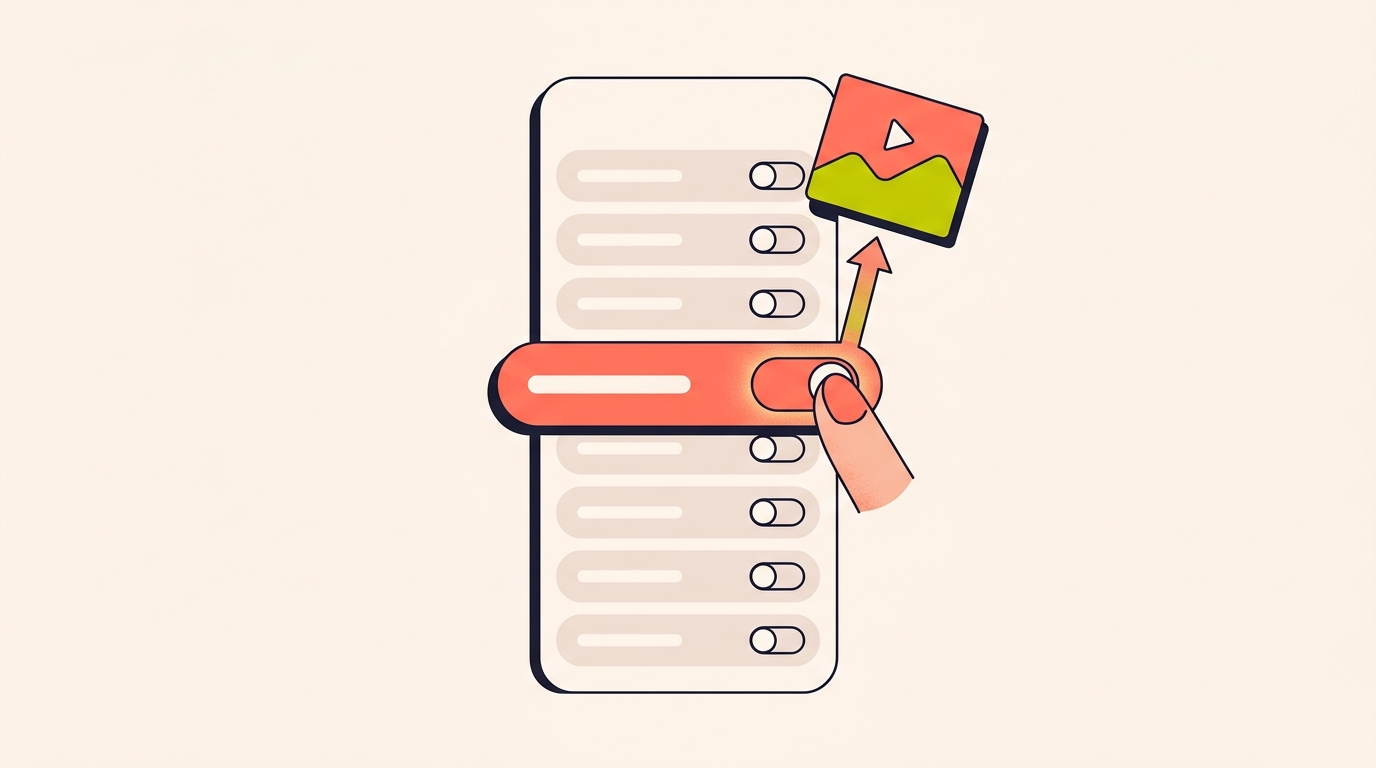
The Instagram app has a setting to always upload reels at the highest quality. Higher-quality uploads can take longer, so leave a little extra time on a slow connection. To turn it on:
- Tap Profile or your profile picture in the bottom right to go to your profile.
- Tap Menu in the top right.
- Below Your app and media, tap Media quality.
- Next to Upload at highest quality, tap the toggle to turn it on.
For reference, reels should have a frame rate of at least 30 fps and a resolution of at least 720 pixels, with an aspect ratio between 1.91:1 and 9:16. The export settings above clear that floor comfortably.
How should I set up my phone before recording?
Settings protect a good recording, but they can't rescue a bad one. This is what we check before every shoot, using a Delhi fitness coach filming a 30-second mobility routine on her terrace as the example:
- Wipe the lens. Phones live in pockets and bags, and a thumbprint on the lens makes every frame look hazy.
- Face the light. Stand with the window or the sun in front of you, not behind you. On a terrace, early morning or late afternoon light is kinder than harsh noon sun.
- Keep the phone still. A small tripod, or the phone propped against a water bottle, beats handheld for anything longer than a few seconds.
- Frame for vertical. Shoot in the 9:16 frame you'll post, and keep your face and the key moves near the centre.
- Check your storage. Higher resolutions and frame rates make bigger files, and running out mid-take costs you the take.
- Record a five-second test and watch it on the phone before doing the full routine.
Good settings protect a good recording. They can't rescue a dark, smudged one.
Once the footage is clean, the opening line decides whether anyone keeps watching. We've collected openings in English and Hinglish in our post on reel hooks.
What does a full quality checklist look like?
Here's the whole routine we follow, in order:
- Clean the lens, face the light and steady the phone.
- Record in Edits, up to 4K at 60 fps, with HDR if your phone supports it.
- Export at 2K, HDR and 60 fps.
- Share directly from Edits to Instagram.
- If you upload from the Instagram app instead, turn on Upload at highest quality first.
- Watch the posted reel on your own phone and note anything that looks off for next time.
What resolution should I export Instagram Reels at?
Export at 2K, HDR and 60 fps. Edits can export up to 4K, but Instagram prioritises playback up to 2K, HDR and 60 fps, so a 2K export is the one to use.
Can I record 4K video in Edits?
Yes. Edits records up to 4K at 60 frames per second, and in HDR if your phone supports it.
How do I keep my reel sharp after posting?
Share it directly from Edits to Instagram, which gives the reel priority processing. If you upload from the Instagram app, turn on Upload at highest quality under Media quality first.
What is the minimum quality for an Instagram reel?
Reels should have a frame rate of at least 30 fps and a resolution of at least 720 pixels, with an aspect ratio between 1.91:1 and 9:16.
Does video quality affect reach on Instagram?
It can. Higher video quality can help your reels reach more people, which is one more reason to export at 2K, HDR and 60 fps.
Sharp reels get asked about. When "price?" and "link?" start showing up under yours, Instoly sends each of those commenters the DM you set up, and nobody else.
The takeaway
Export at 2K, HDR and 60 fps, share straight from Edits, and give the camera clean glass and good light.
Sources
Built for Instagram creators.
Instoly answers comments on your posts and reels with an automatic DM, through Instagram's official API. It also gives you a Store for the link in your bio, AI Studio for captions and try-on, and invoices built from your posts. The free plan includes 1,000 DM & comment credits a month.
Start free